Accurate fund tracking isn’t optional for nonprofits — it’s mission-critical. Donors, grantors, and your board expect that funds given for a specific purpose are used for that purpose, and that you can prove it. QuickBooks doesn’t come with built-in “fund accounting” like some specialized nonprofit packages, but its class tracking feature is the most practical, widely used way for nonprofits to track funds, programs, and restricted grants. This post explains what classes are, how to set them up, how to use them to manage restricted funds and compliance, how tags fit in, and when to consider other software — all with realistic examples and workflows your team can implement this week.
Quick takeaway: use classes to represent the financial dimension you must report on (fund, grant, or program), use tags for flexible activity-level tracking (events, campaigns), and build simple processes so your team assigns classes consistently. Now let’s get into the how and why — with concrete steps and examples so you don’t have to guess.

What Are QuickBooks Classes and Why Do Nonprofits Use Them?
Definition and Purpose of Classes in QuickBooks
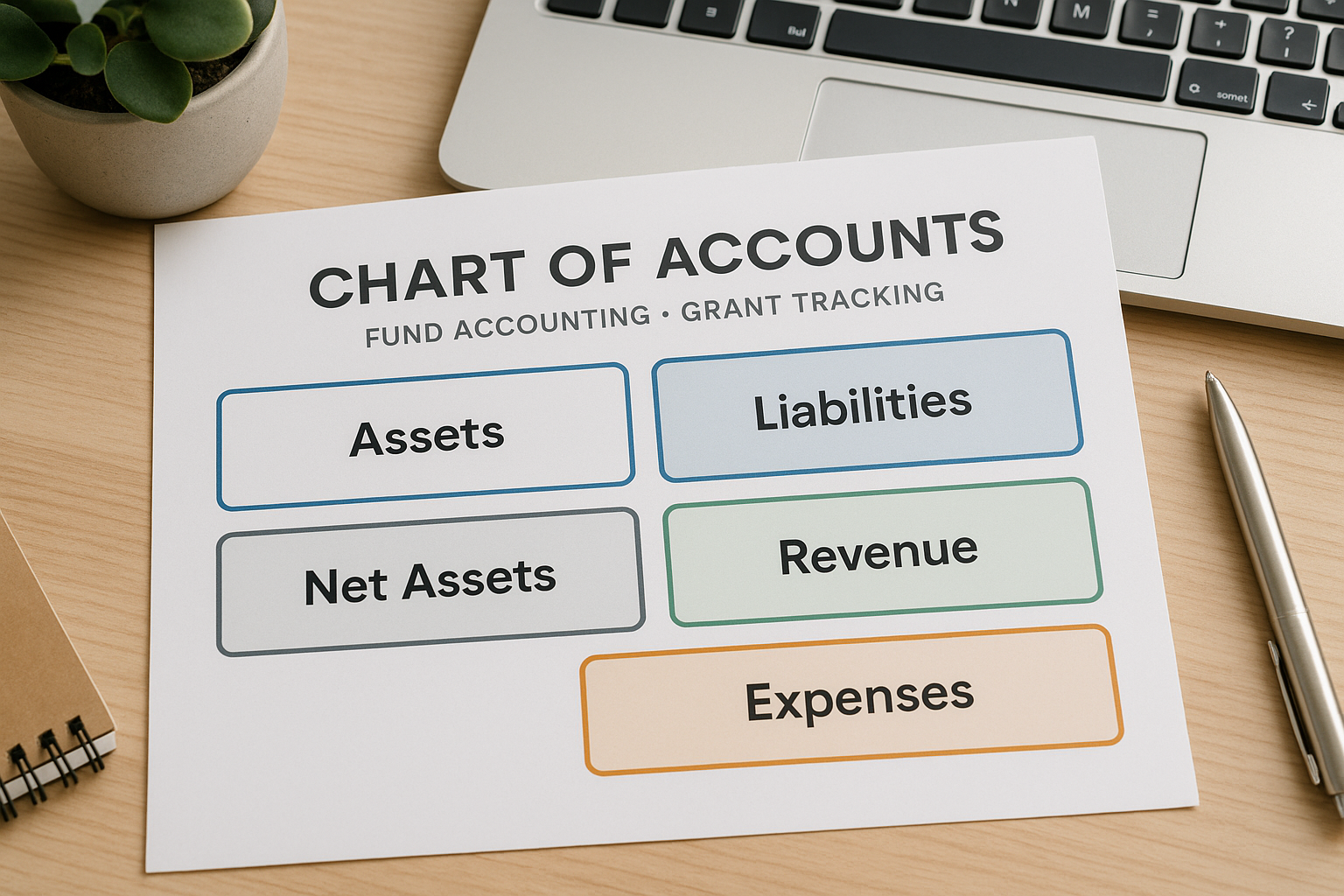
Essentially, classes are a customizable tracking field in QuickBooks (Online and Desktop) that you can attach to transactions. Think of a class like a label you can put on income, expenses, invoices, bills, payroll items — anything financial. Unlike accounts (which organize by type such as cash, grants receivable, or salaries), classes slice your financials by organizational dimensions: funds, programs, locations, or projects.
Why classes instead of more accounts? Because accounts are limited and intended for the chart of accounts structure. In short, classes let you add a second axis of reporting without bloating the chart of accounts.
Short version: classes let you run financial reports by the dimension that matters — fund, program, grant, or location.
How Classes Support Fund Accounting and Program Tracking
Nonprofit fund accounting requires you to show net assets by restriction type (unrestricted, temporarily restricted, permanently restricted) and often by program. Classes help you do this without switching to a specialized fund accounting package: assign each donation, grant, and expense to a class that represents either the fund (e.g., “2026 After School Grant”) or the program it supports (e.g., “Youth Programs”).
When used consistently, classes allow you to:
- Produce statements of activities by program/fund (P&L by class)
- Show how restricted gifts were spent and whether remaining balances exist
- Reconcile grant budgets to actuals for reporting to funders
- Give your board program-level financial visibility in board packets
Here’s a practical mental model: accounts = what the money is; classes = where the money belongs.
Common Uses: Restricted Grants, Programs, and Fund Types
Typical class structures nonprofits adopt:
- Fund-level classes: Unrestricted, Temporarily Restricted – Education Fund, Permanently Restricted – Endowment
- Program classes: Youth Programming, Adult Services, Fundraising, Admin
- Grant-specific classes: Grant 2026-DOE-1234 (when granularity is required)
A few rules of thumb: prefer one purpose per class (don’t mix program + campaign in one class), keep the class list manageable (50–100 is possible, but fewer is easier), and use naming conventions that make reports readable (year + fund + short description).
Wrap-up: classes are your nonprofit’s primary tool in QuickBooks for representing the organizational dimension you must report on.

Step-by-Step Setup: How to Use QuickBooks Classes for Nonprofit Fund Tracking
Enabling and Configuring Class Tracking in QuickBooks Online/Desktop
QuickBooks Online:
- Gear icon > Account and settings > Advanced.
- Under Categories, turn on “Track classes”.
- Choose whether to prompt for a class on each transaction and whether a transaction can have multiple classes (one class per line is usually best).
QuickBooks Desktop:
- Edit > Preferences > Accounting > Company Preferences.
- Check “Use class tracking” and select “Prompt to assign classes”.
Implementation tips:
- Enable the setting that forces a class entry on transactions to reduce unclassified entries.
- For audits, allow multiple classes per transaction line only if you have a strict policy and the team knows how to split lines correctly.
Creating Classes for Different Fund Types and Programs
Plan your structure first — sketch it on a spreadsheet. Example class set for a small org:
- Unrestricted
- Temporarily Restricted – General Grants
- Temporarily Restricted – Youth After School 2026
- Permanently Restricted – Endowment
- Program – Youth Programs
- Program – Adult Services
- Admin / Overhead
- Fundraising / Campaign 2026
Steps to create:
- QuickBooks Online: Gear > All Lists > Classes > New.
- QuickBooks Desktop: Lists > Class List > New.
Naming convention tip: start with the year for time-limited funds (e.g., “2026 – Youth After School”) to make historical reporting easier.
Assigning Classes to Transactions Consistently
Indeed, this is where most organizations stumble. Without rules, you’ll end up with inconsistent classing and unreliable reports.
Adopt a simple policy:
- All incoming donations and grant receipts get a class representing the restriction (fund or grant).
- Expenses must be classed to the program or fund that benefits from the expense.
- Overhead allocations should be a consistent percent (documented) and applied via journal entries or payroll allocations.
Practical workflow:
- Donor contribution arrives — development staff records the deposit and assigns the donor’s gift class.
- When paying program expenses, accounts payable assigns the same program class as the grant that will pay for it.
- Monthly review: finance runs P&L by Class and compares grant balances to the grant agreements and funder reports.
Example: Your “Youth After School 2026” grant requires $50,000 to be spent on program supplies. You record the grant receipt as class “2026 – Youth After School” and every expense for supplies, instructor stipends, and field trips uses the same class. P&L by Class then shows income of $50,000 and expenses of $32,000, leaving an available balance of $18,000.
Quick tip: Use memorized transactions or bills to preset classes for recurring grant-funded payments.

Tracking Restricted Funds in QuickBooks: Best Practices and Reporting
Understanding Restricted vs Unrestricted Funds and Grant Compliance
Restricted funds are donor- or grantor-defined limits on how and when funds can be used. Temporarily restricted funds might be spent on a program in a specified time period; permanently restricted funds (rare in many small orgs) are usually endowments.
Why it matters: misuse of restricted funds can violate donor intent, trigger grant repayment, damage reputation, and complicate audits. So your job is to show a clear chain: receipt → assignment → expenditure → reporting.
Using Classes to Separate and Track Restricted Grants
Best practices:
- Create a unique class for each material restricted fund or grant that requires separate reporting.
- For multi-year grants, include the fiscal year in the class name.
- When a grant imposes multiple restrictions (e.g., program + capital), consider using classes for the fund and tags for restriction type, or create granular classes if reporting requires it.
Practical example:
- Grant award: $100,000 for “Workforce Training Program” over two years, restricted to participant stipends and curriculum costs.
- Create class “Workforce Training 2025-26”.
- Record grant revenue with that class; code stipend expense lines to same class. Use a budget by class to compare expected vs actual.
Generating Fund-Specific Reports in QuickBooks
Key reports:
- Profit & Loss by Class (P&L by Class) — shows income and expenses per class.
- Balance Sheet by Class (Desktop supports this; Online may require workarounds using custom reports or exporting).
- Transaction List by Class — for audit trails.
- Budget vs Actual by Class — helps monitor grant spending against award budgets.
How to read a P&L by Class for grants:
- Locate the class that represents the grant.
- Confirm revenue recognized matches the grant receipts intended for that class.
- Compare expenses in that class to approved budget line items.
- Any unspent grant funds become net assets for that class and should be labeled “restricted” until released by spend or donor.
Tips for Accurate Compliance and Audit Preparation
- Reconcile grant balances monthly: match grant receipts to bank deposits and to revenue entries.
- Keep a grant file (PDFs of agreements) linked or referenced to the class so auditors can tie transactions to the award terms.
- Maintain segmentation: don’t mix restricted and unrestricted spending in the same class.
- Document allocation methodologies for shared expenses (e.g., how you allocate admin costs across programs).
- Use the Transaction List by Class report to export and provide auditors with a clear trail.
Small process checklist:
- For each grant: create class → set up budget by class → assign classes consistently → run monthly P&L by class → reconcile to grant agreement.
If a grant has unusual recognition rules (advance payments, refundable portions), check with your CPA because revenue recognition can get tricky.

QuickBooks Tags vs Classes for Nonprofits: What’s the Difference?
Overview of QuickBooks Classes and Their Role in Fund Accounting
Classes are formal, reportable dimensions meant to persist and be used consistently for financial reports and audits. Use them for funds, programs, and grant-level tracking.
Introduction to QuickBooks Tags and Their Flexibility
Tags are a newer QuickBooks feature that let you track additional, ad hoc dimensions — campaigns, events, or internal initiatives — without adding to the class list. Tags are great for short-term or cross-cutting analysis but currently lack some of the formal reporting power and accounting rigor of classes.
Pros and Cons: When to Use Tags vs Classes
| Feature | Classes | Tags |
|---|---|---|
| Best for | Fund, program, grant, location (persistent dimensions) | Campaigns, events, one-off tracking, qualitative segmentation |
| Reporting strength | Strong (P&L by Class) | Flexible but limited in built-in formal reports |
| Audit friendliness | High (standard reports, consistent usage) | Lower unless disciplined; good as supplementary info |
| Setup overhead | Requires planning and maintenance | Quick to create and use |
| Recommended use case | Restricted funds, program budgets, grant compliance | Event expenses, marketing campaigns, COVID relief tracking |
Use classes for any financial dimension you must report on regularly or that affects donor/grant compliance. Use tags for supplemental analysis and operational insights.
Combining Tags and Classes for Multi-dimensional Tracking
You can—and often should—use both. Example workflow:
- Class = “Youth After School 2026” (fund/grant)
- Tag = “Spring Fundraiser 2026” for revenue tied to a specific campaign or event
- Expense lines can carry both: class for the fund that pays, tag for the event that generated the cost or revenue
This keeps your fund accounting intact while giving development and programs teams flexible reporting without bloating the class list.
Quick reminder: don’t replace required class entries with tags for compliance reporting. Tags are supplemental.
Fund Tracking in Accounting Software: How QuickBooks Compares
Fundamentals of Fund Accounting for Nonprofits
Simply put, fund accounting separates resources into funds according to restrictions. Financial statements must reflect net assets by restriction and program-level results. Ultimately, the right software should make securing that separation straightforward, auditable, and transparent.
QuickBooks as a Fund Accounting Tool: Strengths and Limitations
Strengths:
- Widely used and accessible
- Classes provide a practical fund-tracking axis without a complex chart of accounts
- Large ecosystem of consultants and integrations
Limitations:
- Not a true fund accounting system (no built-in net asset classification automation; some reports need manual setup)
- Balance Sheet by Class is less accessible in Online
- Complex grant management (multi-line compliance, revenue recognition, and tracking subawards) may be clunky without add-ons
Other Accounting Software Options with Fund Tracking
If your organization needs deeper nonprofit-specific features, consider:
- Aplos — built for nonprofits, fund accounting first, simpler transition from QuickBooks
- Blackbaud Financial Edge NXT — enterprise-grade fund accounting
- NetSuite Nonprofit — scalable for large orgs
Naturally, these systems tend to automate net asset classes, grant budgeting, and advanced reporting — at higher cost and implementation time.
Choosing the Right Accounting Software for Your Nonprofit
Ask:
- Do we need audit-ready fund statements out of the box, or can we achieve compliance with QuickBooks + processes?
- How complex are our grants and revenue recognition needs?
- Do we have the budget and staff bandwidth to implement and maintain specialized software?
- Can we use integrations (payment processors, donor CRMs) to bridge gaps?
If you’re a small to medium nonprofit with disciplined processes, QuickBooks + classes + tags can work well. If you’re multi-state, manage many large grants, or need specialized compliance features, evaluate purpose-built nonprofit software.
Where to Start This Week
- Step 1: Map your reporting needs — list restricted funds and programs that require separate reporting.
- Step 2: Design a class structure on a spreadsheet and review it with your ED and treasurer.
- Step 3: Turn on class tracking and create your core classes.
- Step 4: Update your transaction templates and train staff; require a class on every transaction.
- Step 5: Run a P&L by Class and reconcile balances to grant agreements monthly.
If this feels overwhelming, schedule a short consultation with a nonprofit-focused CPA or an accounting consultant. They can review class structures and set up templates so you don’t have to learn everything by trial and error.
A quick friendly note: Telos CPAs works exclusively with nonprofits and can help design class structures, report templates, and internal controls if you prefer expert help.
Wrap-up: classes give you the accounting backbone; tags give you the extra lens. In the end, use both thoughtfully, document your rules, and your next audit or grant report will be much less stressful.
Now go apply this to one fund: create the class, run the P&L by class, and see what it tells you. Still reading? You’re already ahead of most organizations.